HOST Instructions to Set up Globe for Readers in ZOOM
When in a meeting that has readers, the host has to set up the Interpretation (Globe) before sharing with the participants in a Session. This is a tutorial to help the Host to set up the Audio Interpretation.
Sign into the Zoom Session and Claim Host.
Once signed into the ZOOM room, look at the bottom task bar. Find the Participants Icon. Click it.
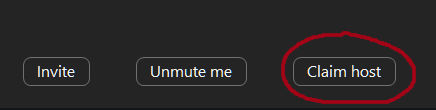
A window will open up on the right, and at the bottom of that window you will see “Claim Host”. Click on it.
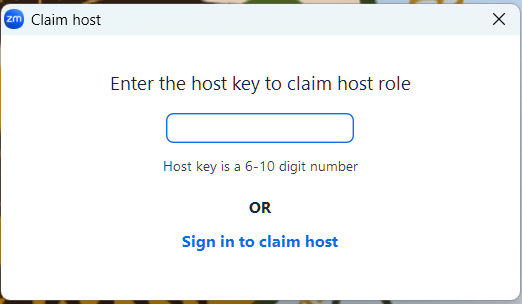
A window will pop up where it asks you to enter the host key to claim host role. Enter the key given to you.
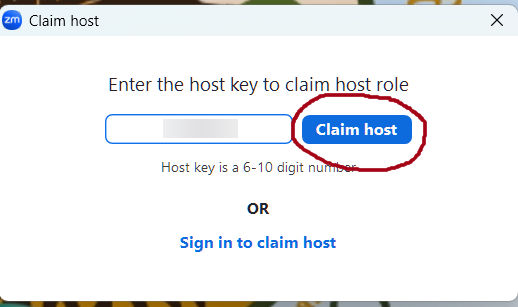
Once you enter the host key a button appears on the right, “Claim host. Click on it.
You are now the Host
Setting up Interpretation Globe with Readers
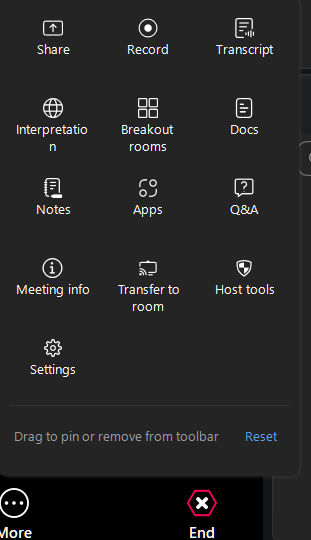
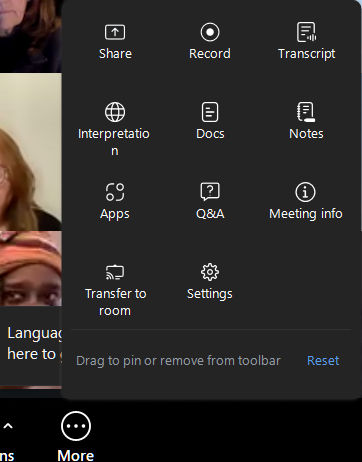
1.Once you are Host, either by claiming Host as above or someone else transferring “Host” to you, look at the bottom task bar. Find the circle with three dots inside with “More” below. If you have readers for your session and need to set them up, wait until they are in the room before adding the, They have to be in the room to add the,Click it.
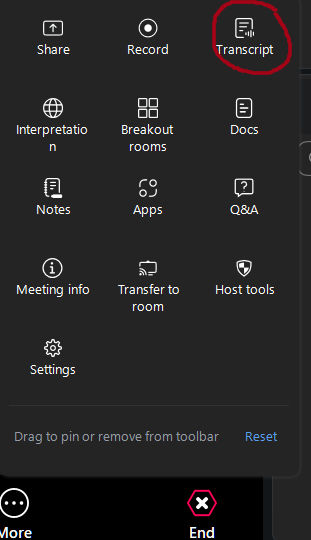
2. A box will pop up like this
3.Click once on “Transcript” at the top right, This will allow Transcript for the Meeting if needed.
Setting up the Interpreters/Readers
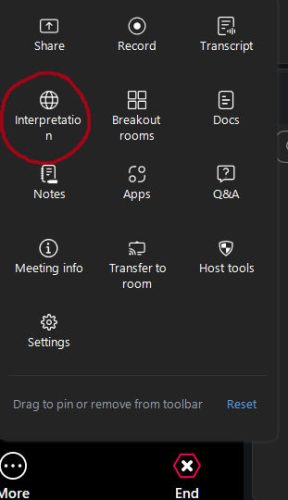
1.Click the More icon again, the box appears again and now click on the Globe “Interpretation on the left.
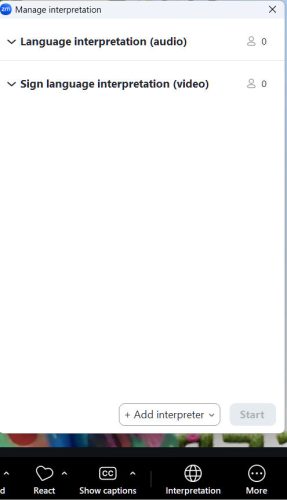
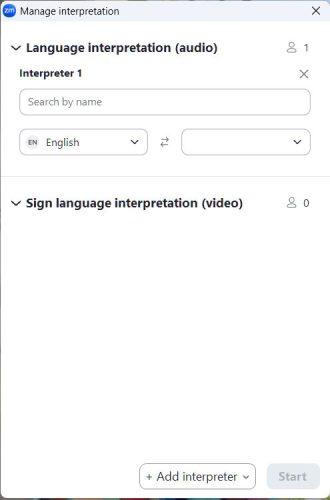
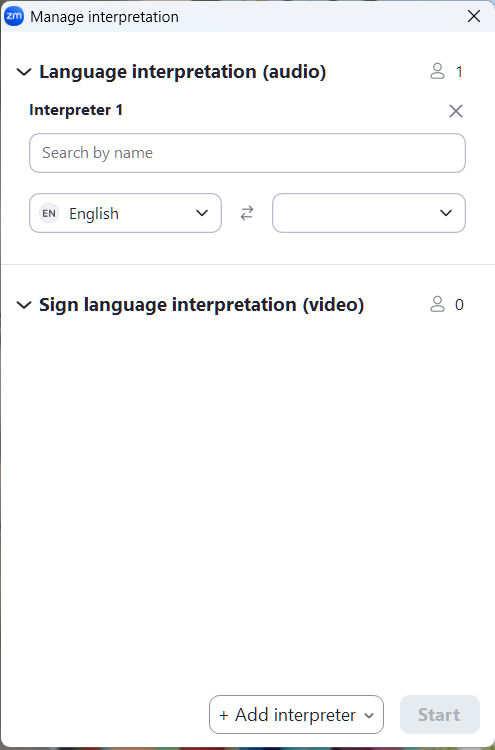
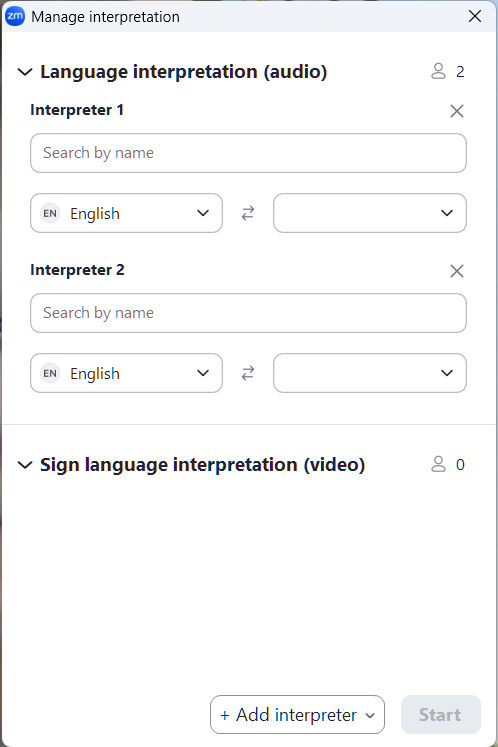
2. A box will appear: “Manage Interpretation”
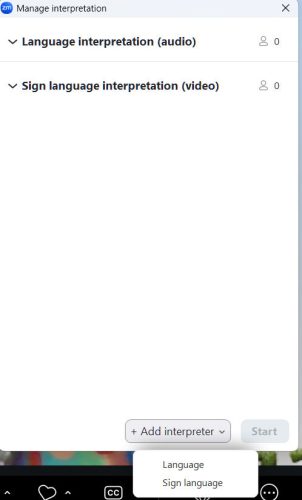
3. Hover over “Add interpreter”. You will see a drop down. Click on “Language”.
4.Now you will add Interpreter One. Search for their name, choose their name in the list of Participants
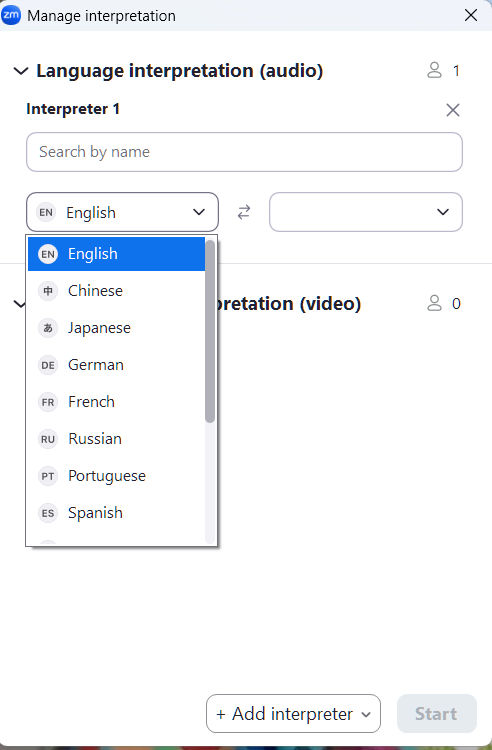
5. Click the left hand box and choose
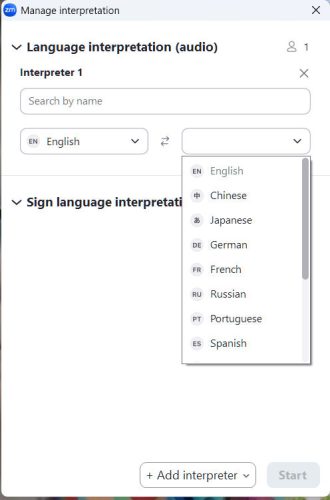
6.Click the right hand box and choose
7. Click the bottom button “+add interpreter” to add another interpreter/reader if you have one
8. Lorem ipsum dolor sit amet, consectetur adipiscing elit. Ut elit tellus, luctus nec ullamcorper mattis, pulvinar dapibus leo.
9.Lorem ipsum dolor sit amet, consectetur adipiscing elit. Ut elit tellus, luctus nec ullamcorper mattis, pulvinar dapibus leo.
You now enabled the Globe for the Participants to set up the Interpretation/readers in their language follow below…
The Participants will not see the Globe to set up thier translation/reading until “Start” is clicked on the host end.
Setting up the Interpreters/Readers for Participants (the Globe)
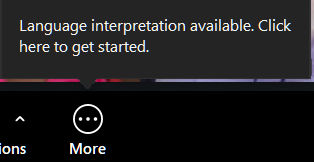
Keep an eye on your task bar. When the Host/Moderator enables/starts it, you will know, either by being told or you will see a pop up (that is if your Zoom is updated.)
2.If not you don’t receive a pop up, don’t worry. Just click the 3 dots in the circle with “more” underneath.
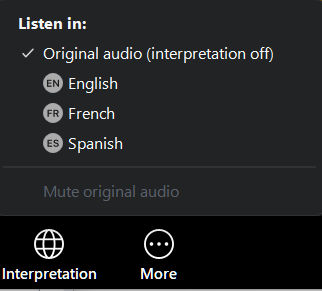
3.On the pop up, click on the globe icon on the left, that says Interpretation underneath.
4.Click on your own language if shown, If not, be sure to use closed captions on your task bar. Click HERE for those instructions.
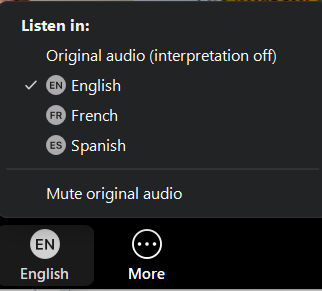
5.On the pop up choose your language.
6.TheGlobe appears in the task bar with the initials of your language.
You are now set up for the Globe/Interpretation/Readers
Even if you are English, still choose English. If there happens to be someone who shares in another language that is interpreted/has a reader, you will hear it in English.