How to Listen to Interpreters
on Zoom

LISTENING (Audio Interpretation)

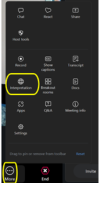
THE GLOBE ICON: Click the Interpretation (Globe) icon in the bottom toolbar (🌐 globe icon).

SELECT LANGUAGE: Select the language you speak. 

MUTE ORIGINAL AUDIO: Select “Mute Original Audio” if you want to hear only the interpreter.

TIPS IF YOU ARE GOING TO SPEAK:

SPEAK SLOWLY: Steady pacing helps both the interpreters and the AI.

DO NOT switch languages mid-sentence or the AI will stop working.

Desktop Workplace App (Windows or macOS)

    1. Join the meeting using computer audio.
    2. In the meeting toolbar, click Interpretation (🌐 globe icon).
    3. Select the language you want to hear
    4. (Optional) Check Mute Original Audio to hear only the interpreter audio.

Mobile App (iPhone or Join the meeting using the Zoom app)

    1. Tap More (…) in the meeting controls.
    2. Tap Language Interpretation.
    3. Choose your language.
    4. (Optional) Toggle Mute Original Audio.

Android, Browser or Web Client

    1. Join the meeting audio.
    2. Click Interpretation (🌐) in the controls.
    3. Select your language.
    4. (Optional) Mute Original Audio.

Notes

  • The Interpretation (globe) option appears when interpreters are present.
  • Phone dial-in audio does not support language channels.