Turning on & changing Translated Closed Captions on Zoom with an Android
PLEASE NOTE: At the account (or user) level, Closed captioning must be enabled in the Zoom account settings first. If it’s turned off at the account level, no one will be able to turn it on in a meeting.
When you enter a convention meeting on your Android phone and want to see closed captions, please follow these steps…
TURNING ON CLOSED CAPTIONING
1. LOOK AT BOTTOM TASK BAR ON PHONE
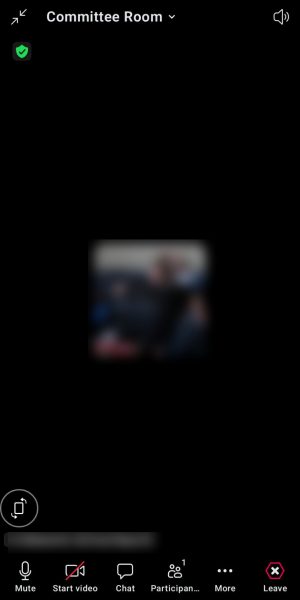
When in a Zoom Meeting, tap your screen
your task bar will appear at the bottom of your screen.
2. CLICK ON THE CC BUTTON TO ACTIVATE CLOSED CAPTIONS
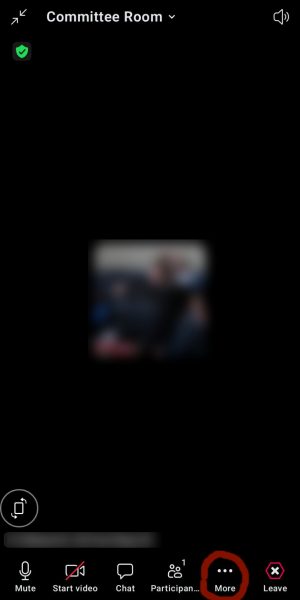
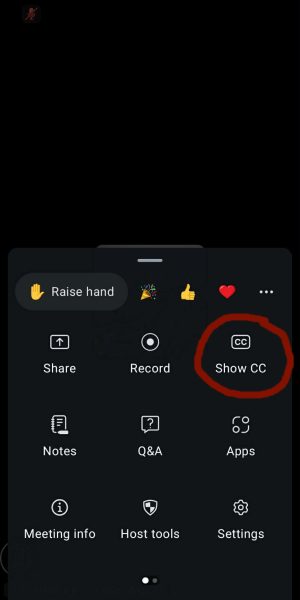
Click the 3 dots with the word “More” underneath.
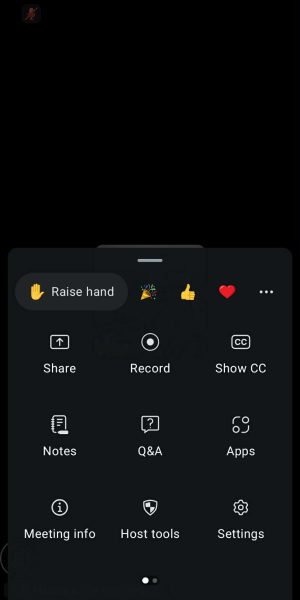
A window will pop up
Click the “CC” Icon “Show CC“
There are odd times number 5 in the next section may pop up, if it does, just proceed to #5.
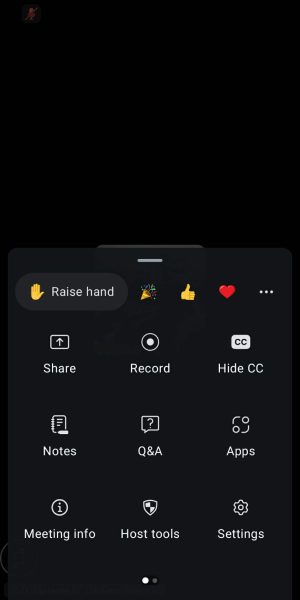
the “CC” Icon “Show CC” changes to “HideCC”
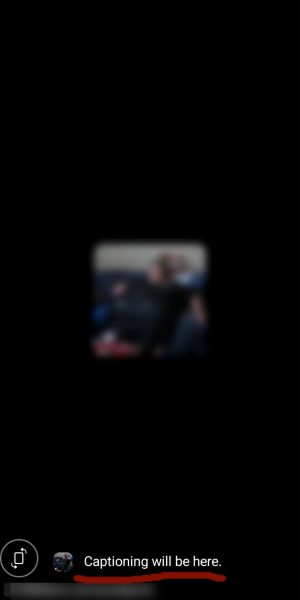
Closed captioning will appear at the bottom of the screen
If done properly, the words under the “CC” icon will change to “Hide CC”
As soon as anyone talks, you will see whatever is being said in English (default language of Zoom).
PLEASE NOTE: If at any time you wish to turn off closed captions, Just hit the “CC” icon with “Hide caption“. You can always click the “CC” icon with “Show captions” again and it will appear.
Now proceed to the next section to change translation to your own language…
TURNING ON CLOSED CAPTIONS FOR TRANSLATION
You learned how to turn on (or off) closed captioning above. Now you will learn how to change the closed captioning to your own language so that when you hear a speaker who doesn’t speak your language, you will be able to read what they are saying in your own language.
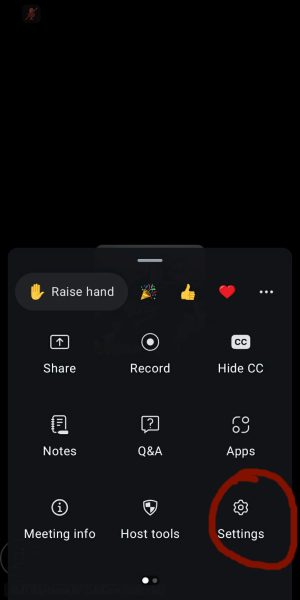
1. Click the 3 dots with the word “More” underneath.
2. A window appears. Click on the cog wheel with word “Settings”
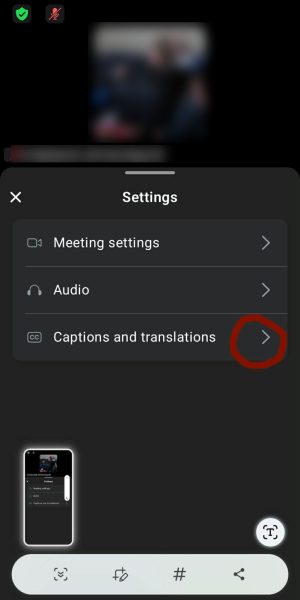
3. On the Settings pop up, Click on “Captions and translations”
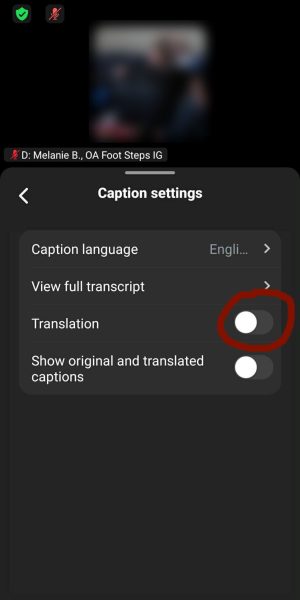
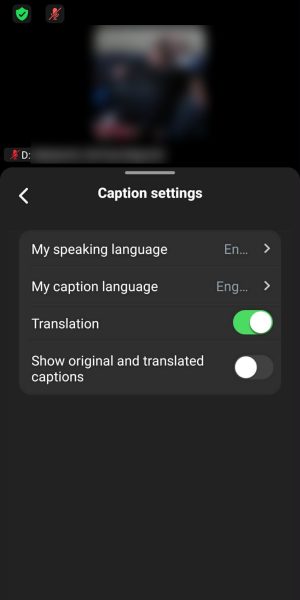
4. On “Caption settings” , turn on the “Translation” button.
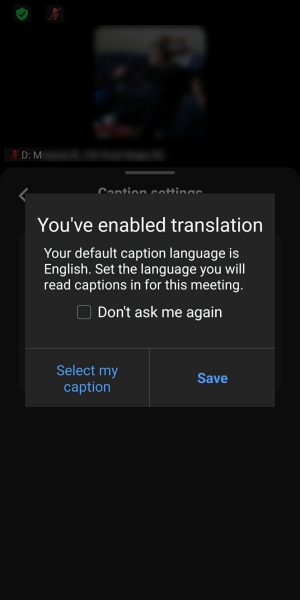
5. A pop up appears and says “You’ve enabled translation”
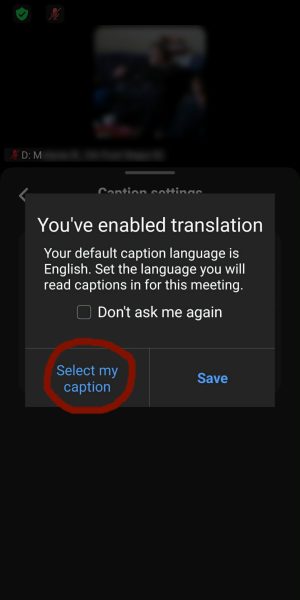
6. Click on “Select my caption”
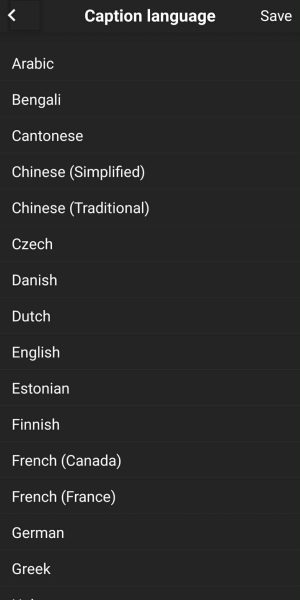
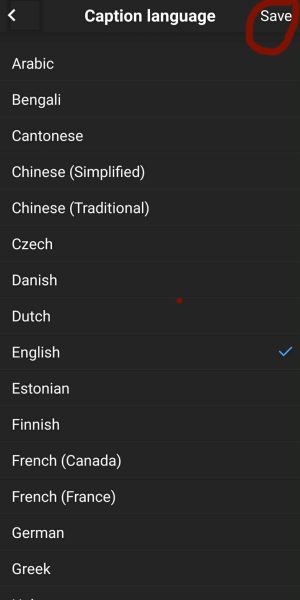
7. Choose your language
8. Then Click “Save”
9. Your Caption Settings are now ready for your language.
If you look at your “Caption settings”, “My speaking language” is now the same as “My caption language”.
Your “Translation” button is now green and is now on. You are ready to listen to any other language and have the Closed Captions translate every word the speaker says and not miss a bit of Experience Strength & Hope.